A few months ago we introduced the Evergine.Cesium add-on, which brings a streamed, globe-scale digital Earth to your .NET applications. Since then, most of our work on it has gone into a single goal: making it faster. We have rebuilt the way the add-on turns Cesium tiles into pixels, and the new renderer streams more smoothly, draws far more tiles for the same CPU time and keeps its memory use predictable.
The short version is that tiles are no longer scene entities. Their geometry goes into one large shared buffer and their imagery into a single texture atlas. The GPU decides what to draw and renders every visible tile with one indirect draw call, while Cesium Native does its work on a thread of its own instead of competing with your frame. The rest of this article explains why we made these changes and how they fit together.
In this article
- Why a digital Earth is hard on a renderer
- Where the old approach struggled
- The new renderer at a glance
- What’s new
- The results
- Getting started
- Upgrading from the previous version
- Try it and tell us what you think
Why a digital Earth is hard on a renderer
A 3D globe is streamed in tiles. Cesium Native looks at where the camera is and works out which pieces of terrain, imagery and buildings are needed, and at what level of detail. Fly over a city and there may be hundreds of tiles on screen at once. Move the camera and many of them are replaced: new ones arrive from the network while old ones are thrown away.
That is a very different workload from a typical game level. A level loads its meshes once and then draws them for minutes on end. A globe is constantly creating and destroying GPU resources while it renders, uploading every tile that arrives and releasing every tile that leaves, and all of that has to happen without the frame rate noticing. So the cost that really matters is not only how quickly a tile can be drawn, but how cheap it is to bring a tile in, keep it around and let it go.
Where the old approach struggled
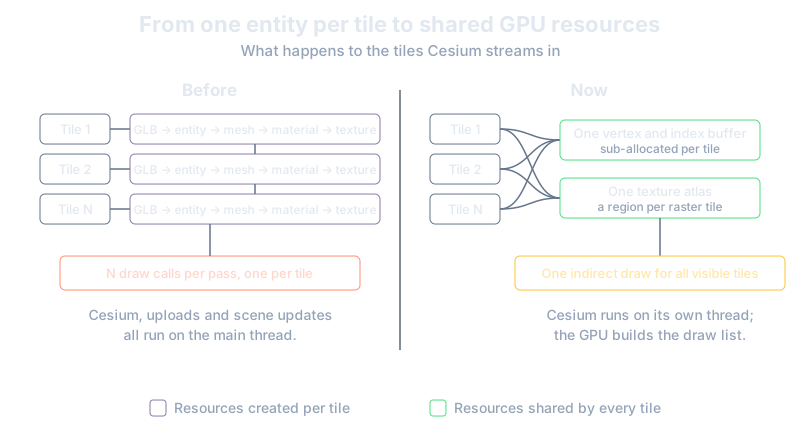
The first version of the add-on took the most direct route and turned each tile into a regular Evergine model. Cesium handed us the tile as a glTF model, which we wrote out as a GLB file in memory and then parsed again with Evergine’s model loader. The loader built an entity with its own mesh and material, the entity was added to the scene, and each piece of imagery became a separate texture that was later attached to the right material. Cesium itself was updated on the main thread, along with the queues that added and removed those entities.
It was simple, and it worked well for small scenes, but it didn’t scale. Every incoming tile paid for a GLB round trip plus a whole set of new entities, meshes, materials and textures, so when many tiles arrived at once the frame would hitch. Each tile was also drawn on its own, in every pass, which meant that with hundreds of tiles on screen the CPU spent a good part of the frame just submitting draw calls, and shadows multiplied that cost. On top of that, thousands of small buffers and textures were being created and destroyed every minute, which made memory use hard to predict, and all of it ran on the same thread as your application.
The new renderer at a glance
The new renderer treats tiles as data rather than entities. Instead of creating resources for each tile, it creates a few large resources once and hands out pieces of them as tiles come and go.
From your application’s point of view very little changes: you still add a CesiumCoordinator to your scene and the globe appears. Under the hood, though, almost everything is new.
What’s new
All geometry in one buffer
All tile geometry now lives in a single vertex buffer and a single index buffer, both created once at start-up. When a tile arrives, the add-on reads its positions, normals, texture coordinates and indices directly from Cesium’s glTF accessors, with no GLB round trip, packs them into an interleaved vertex format and copies them straight into the tile’s own slice of the shared buffers.
Handing out those slices has to be fast, because it happens for every tile that streams in. For that we use a C# port of Sebastian Aaltonen’s OffsetAllocator, which was designed for exactly this job. It sorts free space into size bins, so allocating or freeing a block takes the same constant time whether the buffer is empty or nearly full, and it keeps fragmentation low. Alongside the geometry, each tile has a small entry in a metadata buffer on the GPU that records where its vertices, indices and imagery are and how it is transformed, so adding or removing a tile only ever touches its own entry.
All imagery in one atlas
Imagery such as satellite photos is draped over the terrain, and Cesium delivers it in small pieces. Rather than creating a texture for each piece, the add-on now packs them all into one large texture atlas. The atlas is organised in rows, or shelves, and each image goes into the shelf that fits it best; when a tile is released, its space is reused by the next image that needs it.
Getting the pixels into the atlas is done without stalling the GPU. Cesium’s loading threads write the images into a staging buffer, and two of these buffers take turns so the CPU can fill one while the GPU reads from the other. Once per frame, a compute shader copies every pending image into its place in the atlas and converts its colours from sRGB to linear on the way. Each image is also surrounded by a four-texel border that repeats its edge pixels, so texture filtering never picks up colour from a neighbouring image and tiles don’t show seams. Finally, when the atlas fills past a threshold, the add-on asks Cesium to release the tiles it no longer needs, which keeps imagery memory under control during long flights.
The GPU builds the draw list
This is the biggest change. In a classic renderer the CPU loops over every object and records a draw call for it, and with hundreds of tiles and several passes that loop quickly becomes the bottleneck. The new renderer moves it to the GPU.
After Cesium has selected the tiles for the current view, the CPU’s only job is to write a visibility mask with one bit per tile. On the GPU, a compute shader runs one thread per tile and reads that bit. Each visible tile claims a slot and writes its draw command into an indirect arguments buffer, and the same shader also works out the tile’s world and world-view-projection matrices, so the vertex shader doesn’t have to repeat that multiplication for every vertex. The renderer then issues a single indirect draw that renders all the visible tiles at once, reading geometry from the shared buffers and imagery from the atlas.
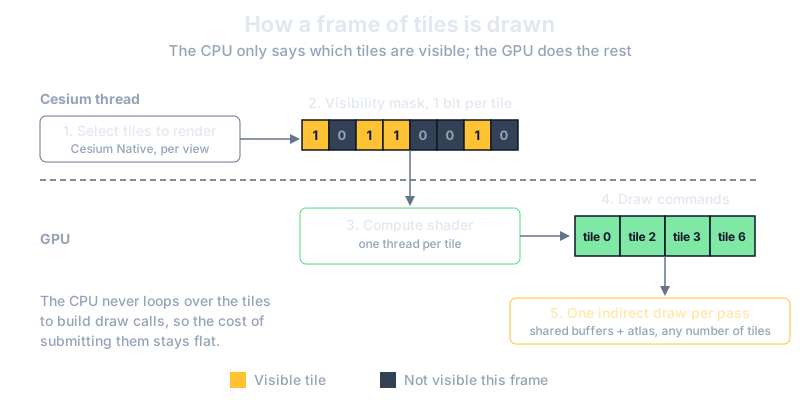
The result is that the CPU’s work no longer grows with the number of tiles on screen. Whether there are fifty tiles or five hundred, it writes a small bit mask, dispatches one compute shader and issues one draw per pass. If you ever need to compare results or track down a driver issue, the UseCPUDrawCalls option switches back to building the draw commands on the CPU, still using the shared buffers and the atlas.
Cesium gets its own thread
Cesium Native now runs on a dedicated thread. Every frame, the main thread hands it the latest camera, and the Cesium thread selects tiles, dispatches loading work and produces a new visibility mask. The two threads swap masks at the end of each update, so the renderer always draws a complete, consistent set of tiles.
The Cesium thread runs at a lower priority, so on a busy machine your frame comes first. If an update takes longer than a frame, the renderer simply keeps drawing the last complete set of tiles while Cesium catches up. Terrain height queries go through the same thread too, and their results are handed back to you during the scene update.
Still a first-class Evergine citizen
Rendering tiles in a custom way doesn’t mean leaving the engine behind. Tiles are drawn with a dedicated city effect built on Evergine’s standard lighting, and they take part in the usual passes. They cast and receive shadows, so they work with the new shadow system and with a sun that moves through the day, and they take part in the depth pre-pass like any other opaque geometry in the scene. The whole pipeline runs on DirectX 11, DirectX 12 and Vulkan.
Know what’s on the GPU
Working with fixed-size buffers means it’s important to know how full they are. CesiumCoordinator.Diagnostics now reports how many tiles are visible in each tileset and how many are resident in total, along with the capacity and usage of the vertex buffer, the index buffer and the texture atlas. These counters make it easy to build your own profiling panel, and the atlas itself is exposed through TextureAtlas, so you can display it and watch the imagery being packed in real time.
The results
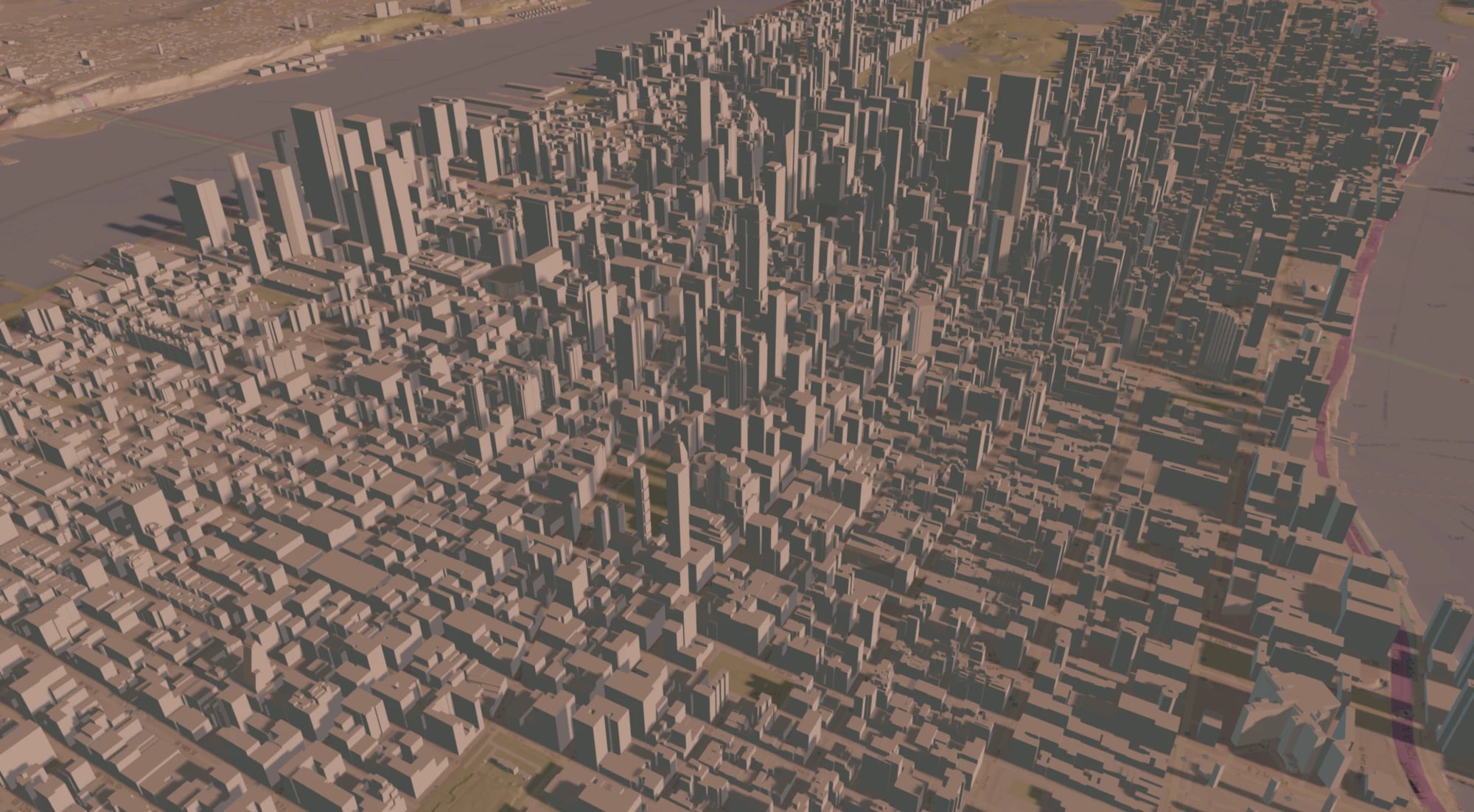
To see what all of this adds up to, we compared the previous version of the add-on with the new one under the same conditions. Both used the same Cesium configuration, with the camera framing the whole city of Madrid on a 4K display, running on an Intel Core i7-14700K and an NVIDIA GeForce RTX 4080 SUPER. To keep the comparison focused on the tile renderer itself, we turned off the depth pre-pass, the G-buffer pass and post-processing, and we recorded frame times with CapFrameX.
The difference is larger than we expected. On average, the frame rate went from 40.4 FPS to 332.4 FPS, which means a frame now takes about 3 ms instead of almost 25 ms: roughly 8.2 times faster.
| Metric | Previous version | New renderer |
|---|---|---|
| Average | 40.4 FPS (24.75 ms) | 332.4 FPS (3.01 ms) |
| P95 | 44.1 FPS (22.68 ms) | 355.5 FPS (2.81 ms) |
| P5 | 37.8 FPS (26.46 ms) | 290.1 FPS (3.45 ms) |
| P1 | 35.9 FPS (27.86 ms) | 281.2 FPS (3.56 ms) |
| 1% low average | 33.8 FPS (29.59 ms) | 274.9 FPS (3.64 ms) |
| 0.1% low average | 30.7 FPS (32.57 ms) | 257.4 FPS (3.89 ms) |
The average is only half of the story. The lows, which average the slowest 1% and 0.1% of frames, show how the renderer behaves at its worst moments, and those are the frames you actually notice as stutter. Here the gain holds up just as well: the slowest frames went from more than 32 ms to under 4 ms. Even the worst frames of the new renderer are more than five times faster than the best frames of the old one, and the gap between the fast frames (P95) and the slowest ones (0.1% low) has shrunk from about 10 ms to about 1 ms, so the globe doesn’t just run faster, it runs much more evenly.
Getting started
If you already use the add-on, updating the Evergine.Cesium NuGet package is enough to get the new renderer. For a new project, add a CesiumCoordinator to your scene along with the tilesets you want to stream:
using Evergine.Cesium;
using Evergine.Cesium.Core;
using Evergine.Cesium.Utils;
using Evergine.Framework;

public class MyScene : Scene
{
    public override void RegisterManagers()
    {
        base.RegisterManagers();

        // The scene must contain an entity tagged as "MainCamera" with a Camera3D component.
        var cesium = new CesiumCoordinator()
        {
            AccessToken = "<YOUR_CESIUM_ION_TOKEN>",
            GeocodingService = new AzureMapsGeocodingService("<YOUR_OPTIONAL_AZURE_MAPS_KEY>"),
            EntityManager = this.Managers.EntityManager,
        };

        // Cesium World Terrain with Bing Maps imagery, plus OpenStreetMap buildings
        cesium.AddOverlayedTileset(1, RasterOverlayProvider.BingAerial, "Terrain");
        cesium.AddTileset(96188, "Buildings");

        this.Managers.AddManager(cesium);
    }
}
Upgrading from the previous version
The new renderer comes with a few API changes. Tilesets are now added explicitly: AddOverlayedTileset is for terrain with imagery draped over it, and AddTileset is for geometry such as buildings. You can add as many as you need and remove them later by name or asset ID.
Geocoding has also become pluggable. The AzureMapsKey property has been replaced by GeocodingService, which accepts any implementation of IGeocodingService. The add-on ships with AzureMapsGeocodingService and a new GoogleMapsGeocodingService, and you can write your own.
Because tiles are no longer entities, code that searched the scene for tile entities won’t find them anymore. Use Diagnostics to inspect what is loaded and QueryTerrainMinHeight to sample the terrain instead. Finally, the new renderer relies on compute shaders and effects that ship with the add-on’s assets, so make sure the assembly and the assets come from the same version.
Try it and tell us what you think
Ready to fly faster? Update Evergine, add the latest Evergine.Cesium package and stream your favourite city. If you are new to the add-on, the introduction to Evergine.Cesium is a good place to start, and the Evergine documentation has the full reference. If you find a problem or have an idea, tell us in the Evergine feedback repository.
We’d love to see what you build with it.